Starting the Classroom System
If the touch screen is blank, press the screen to wake up the panel.
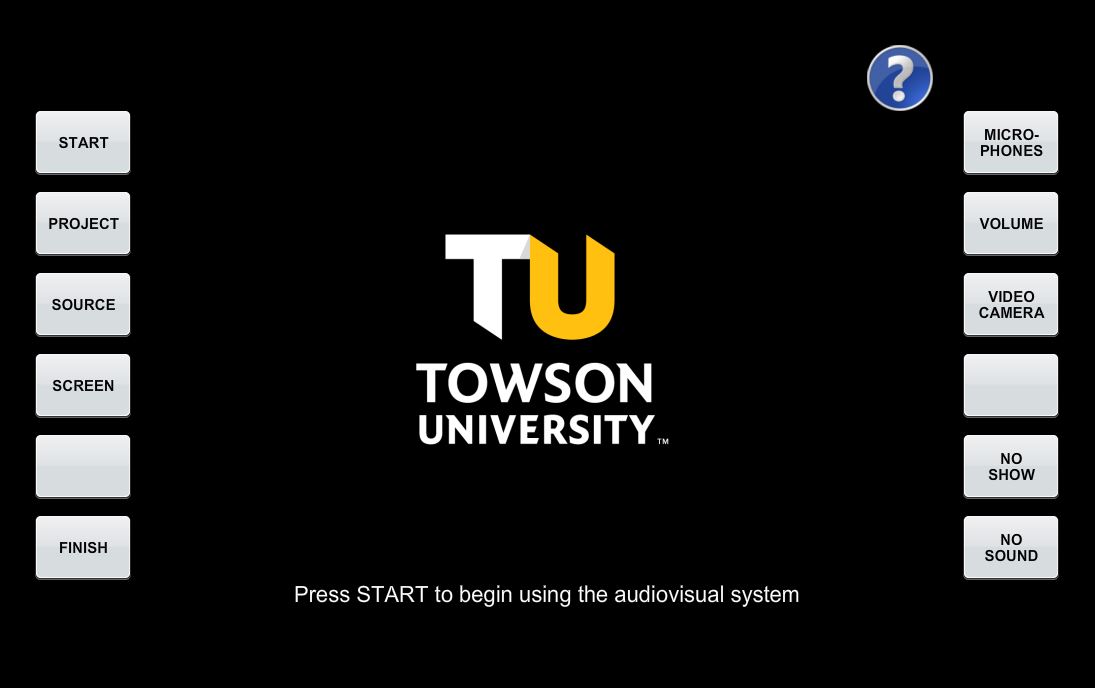
- Press Start to start using the system.
- Press Project to start projecting to the audio visual system
- You will be able to choose which display to output from
- You can change the output any time through the Source option
Source Options
The following are different source options available. The room computer is the default option
Your choices may vary depending on the room and the equipment available
| Source |
Action |
| Computer |
Duplicates the content of the room computer |
| Auxiliary |
Duplicates the content of a connected HDMI device |
| Document Camera |
Displays the content from the document camera |
| Wireless Input |
Wirelessly displays the content from a device connected to a solsticepod |
| Blu-ray |
Displays the content of a Blu-ray player |
Shutting down the system
Press Finish
Confirm that you are finished using the system by pressing Yes
Make sure to log out of the computer
Solstice Pod
You can use the solsticepod to wirelessly project a mobile device or laptop.
The device that you wish to share content with has to be connected to the tu-secure wireless network.
Connecting to the Solstice Pod
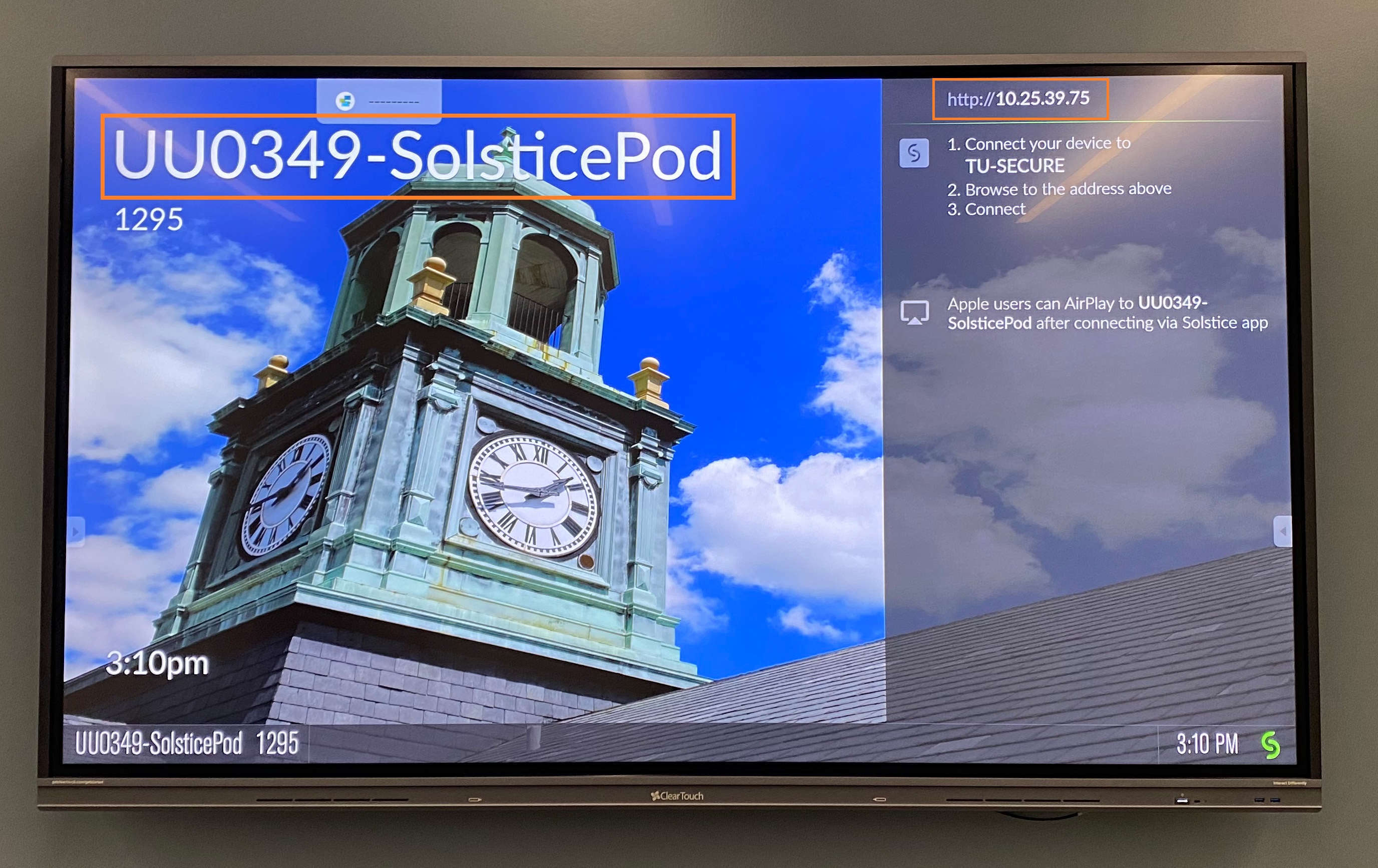
You can either type in the IP address or the link shown on the screen as highlighted in orange .
Laptop
After visiting the link or IP address above, you will have the option to share you screen using the web browser or through the app by downloading it.
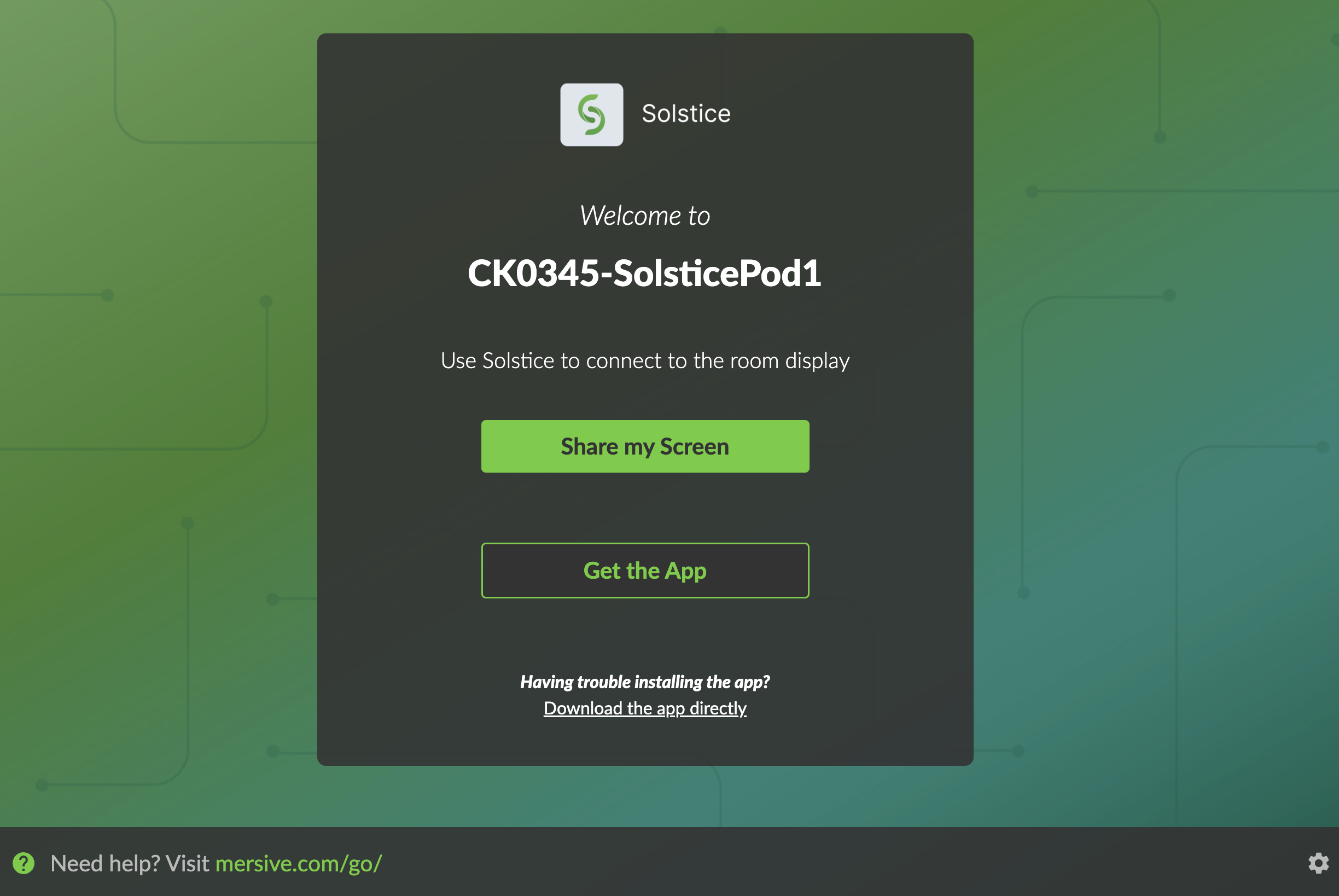
Administrator privileges are required to install the app
MacOS permissions
On MacOS, you will have to allow the browser to have screen sharing permission enabled and have the browser restart if you haven't done so already
Limitation using Safari
If you are using Safari, or any browsers in an IOS device, you will not have the option to share your screen without downloading the app.
You will be prompted to enter a nick name and the key on the screen after you connect.
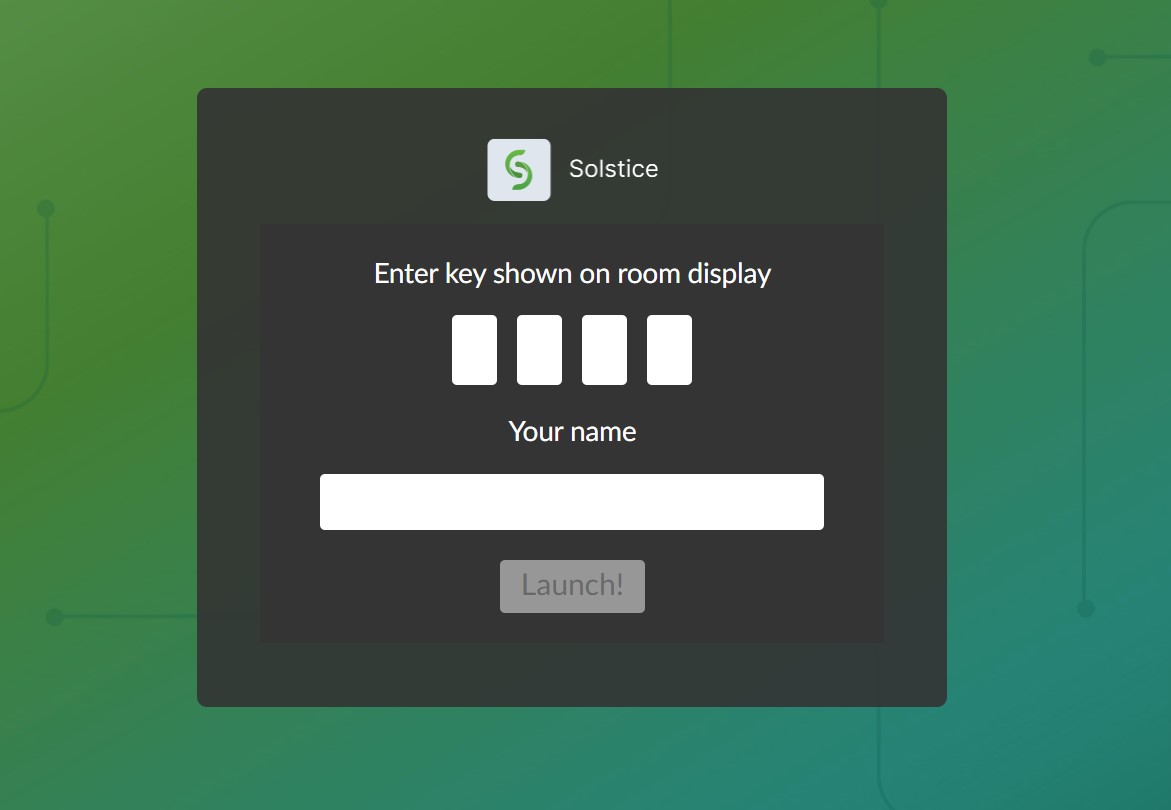
Sharing through the browser
If your browser supports it, press Share my Screen and you will be presented with a warning screen. To be able to share, you will have to go past these warnings
Firefox
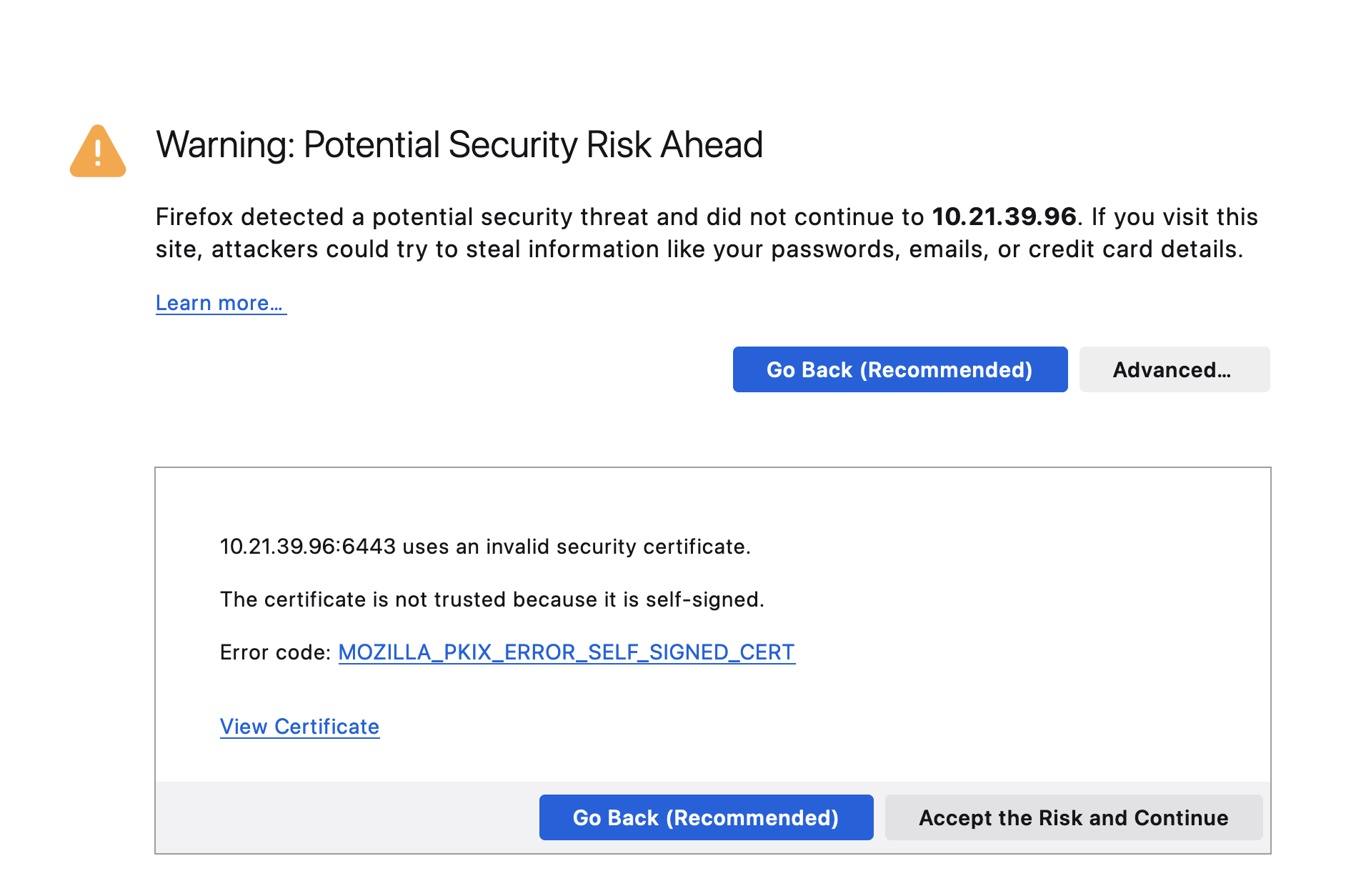
- Click Advanced then Accept the Risk and Continue
Chrome
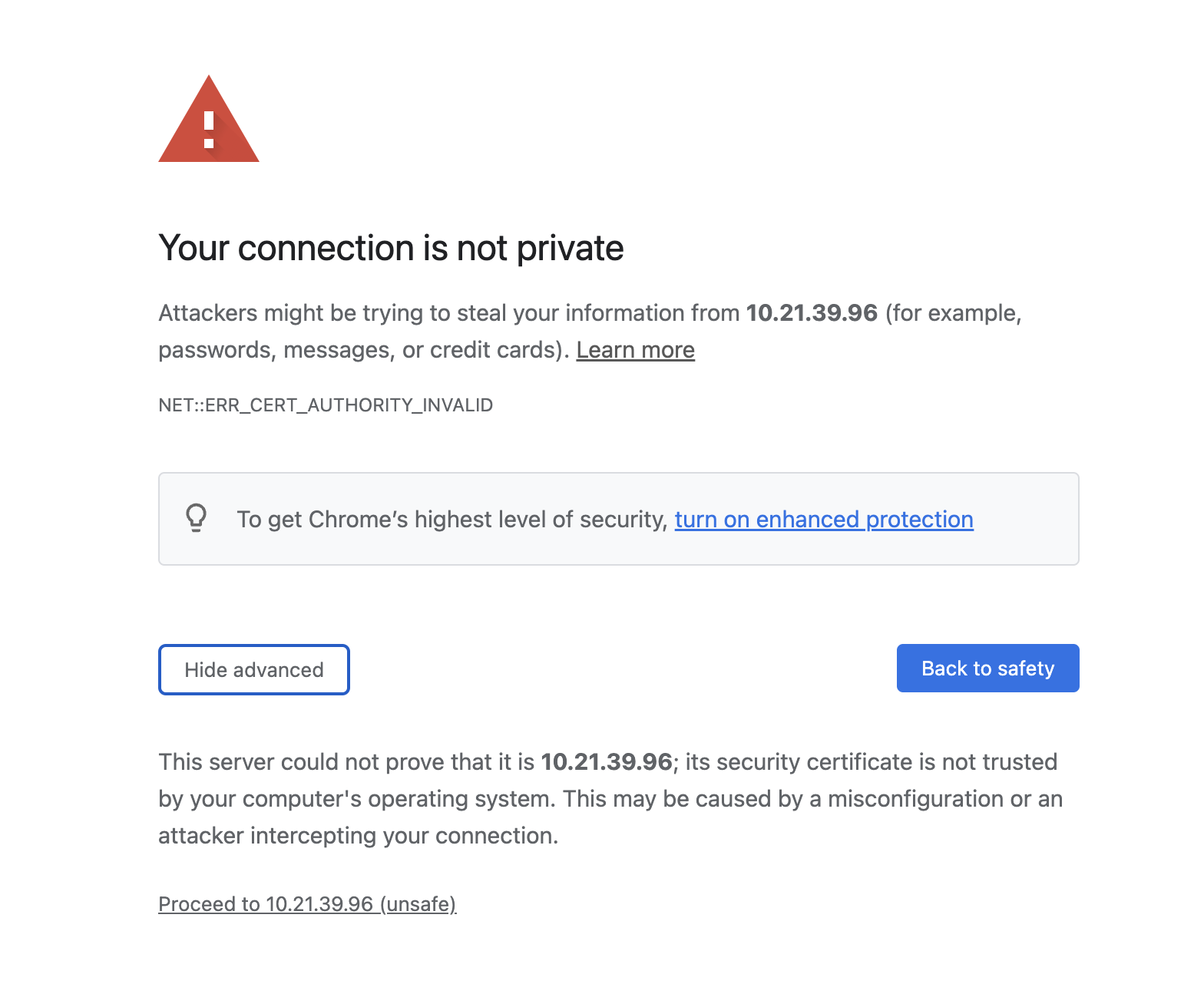
- Click Advances then Proceed to <IP address> (unsafe)
A prompt to select which screen to share will appear
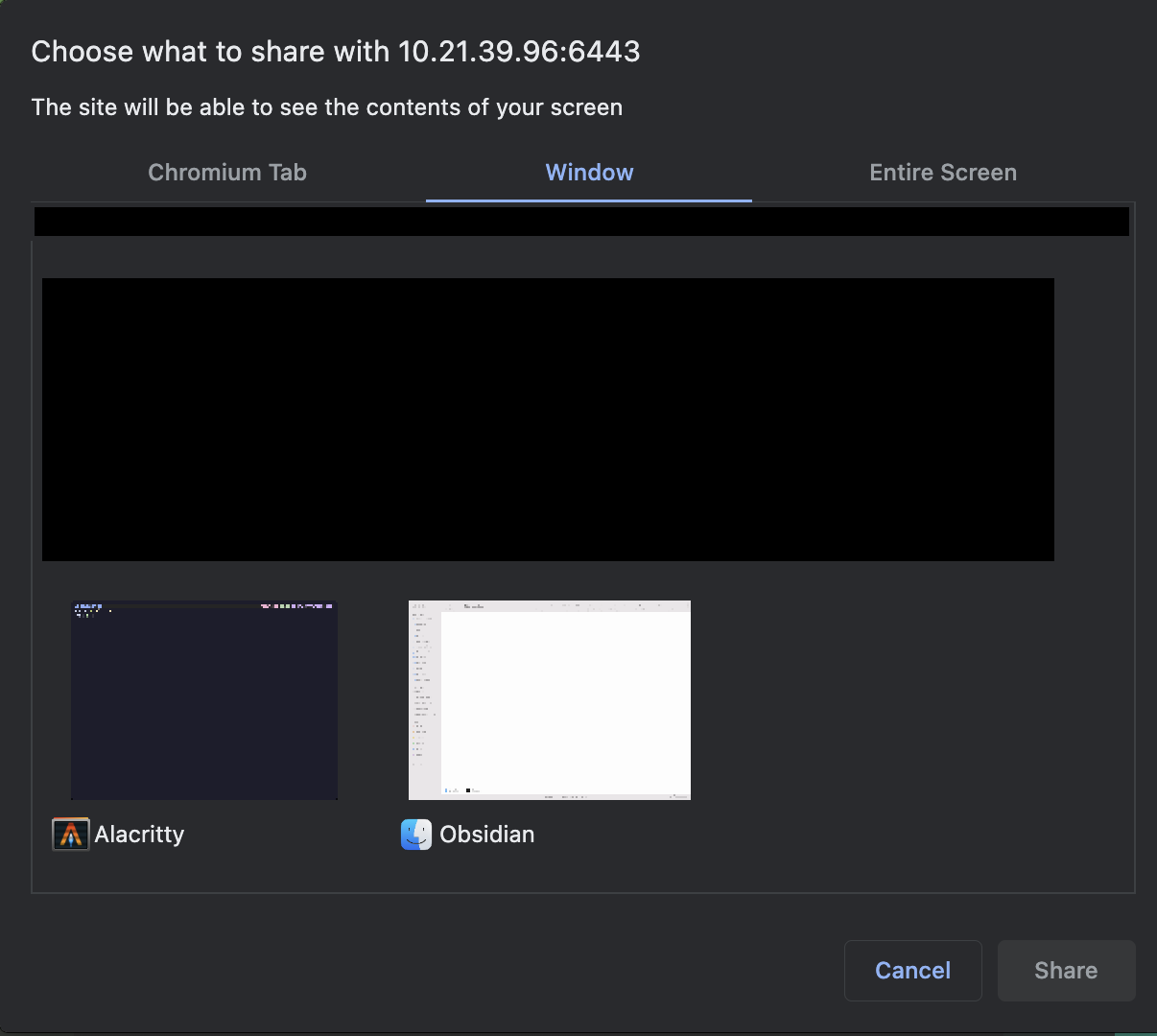
Click the window that you'd like to share and click Share to share the screen.
Closing the tab with the Solstice page will stop the screen share.
Mobile devices
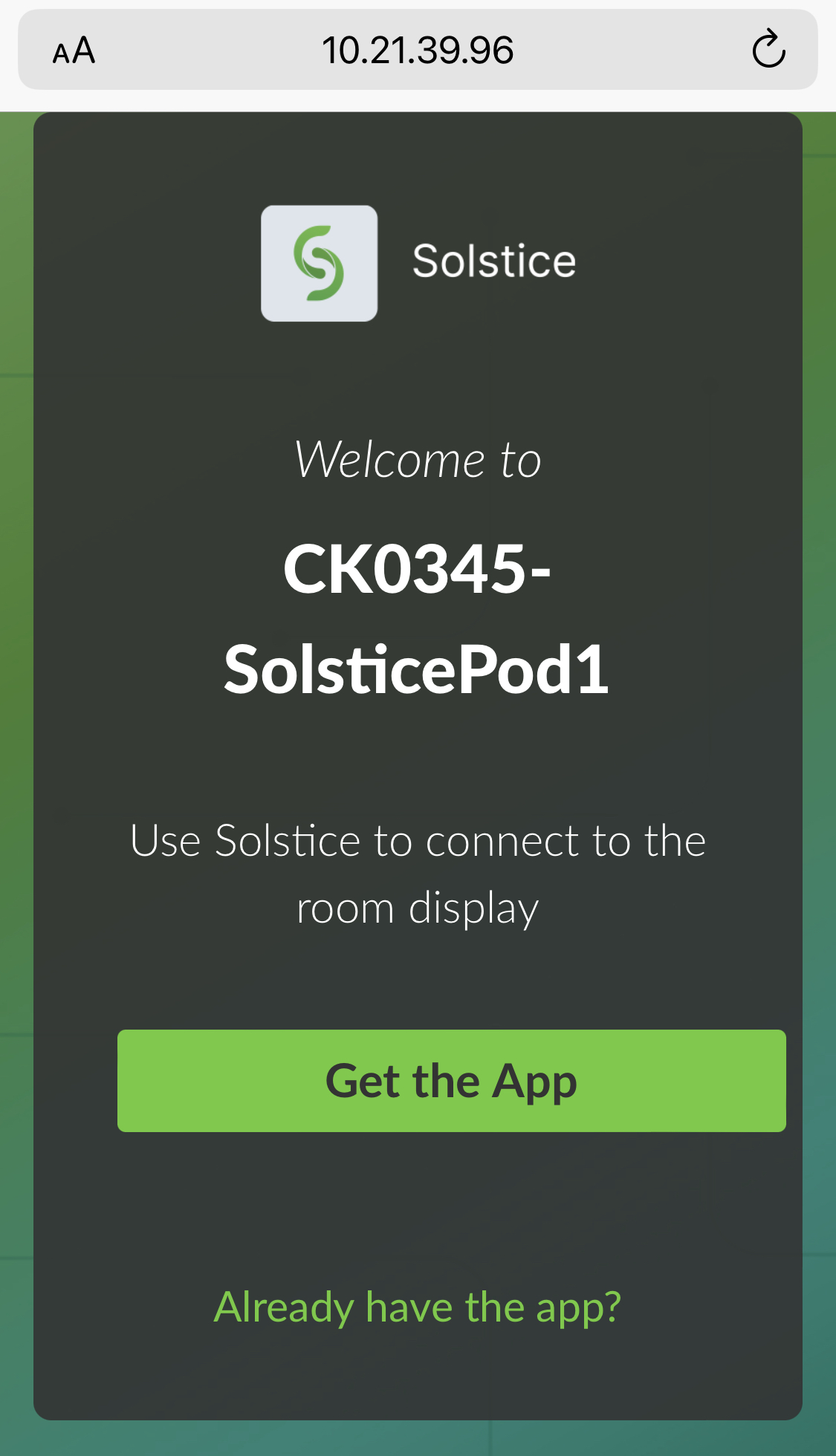
If using a smartphone or a tablet, it is a requirement to download the Solstice app.
Pressing the "Get the App" button will take you to your device's respective app store.
IOS
After installation, open the app
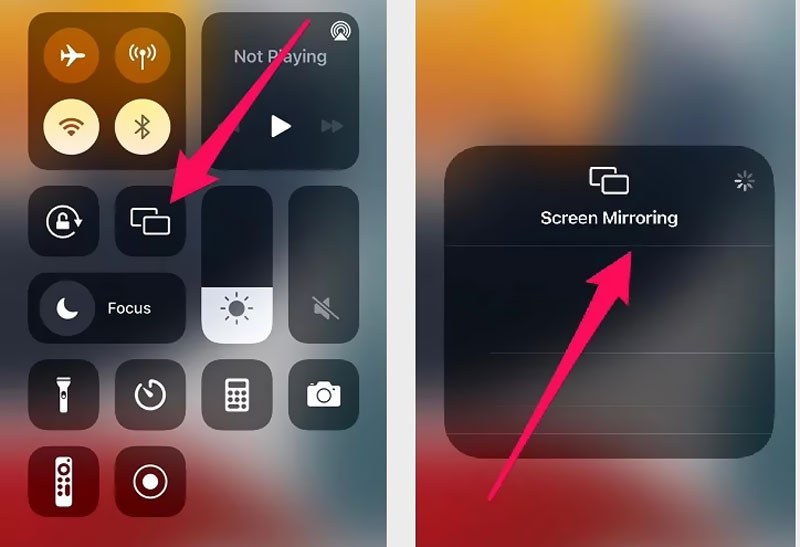
Swipe down to get to the Access Control Center and press the Screen Mirroring button
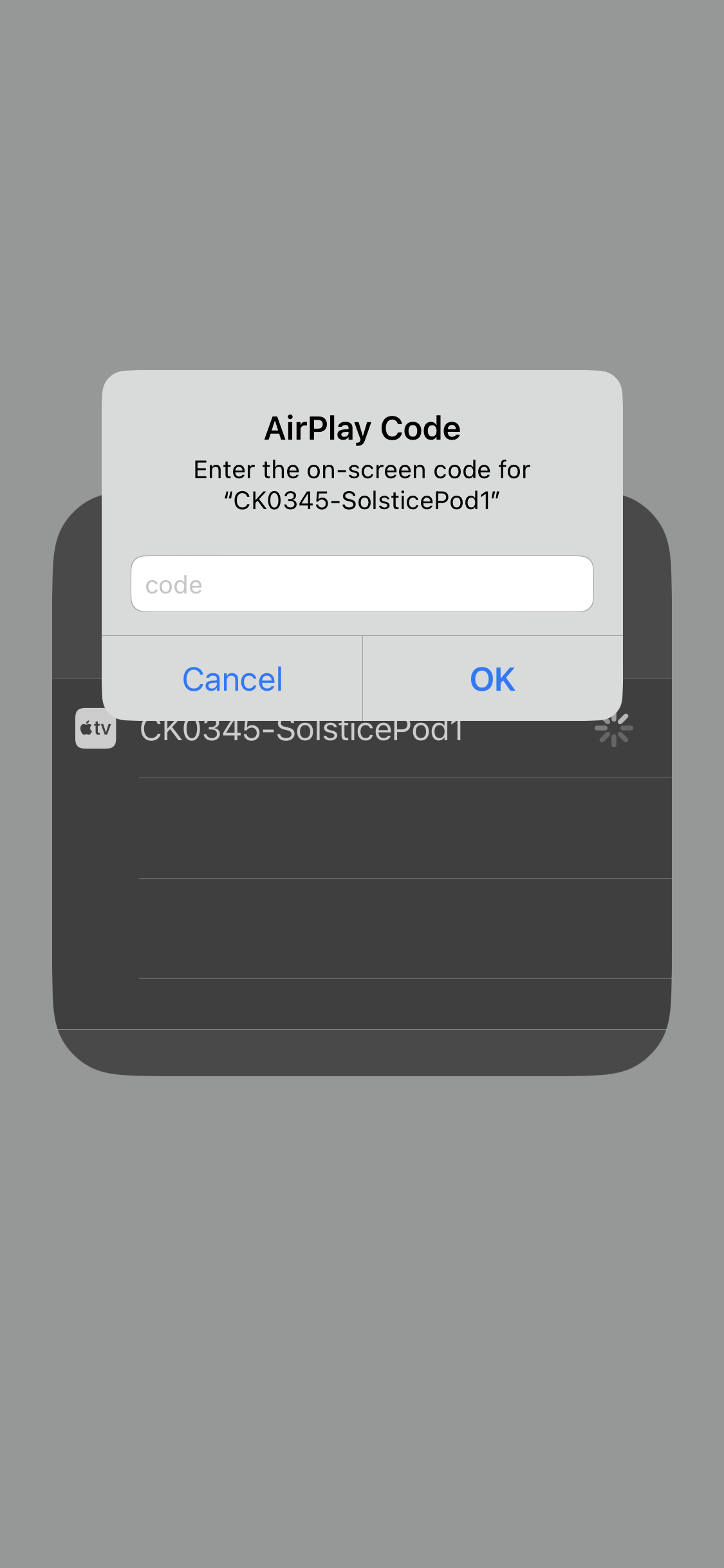
An entry for a solsticepod should appear and after clicking the entry for the solsticepod, you will be prompted to enter the key on the screen again.
Your screen will start sharing.
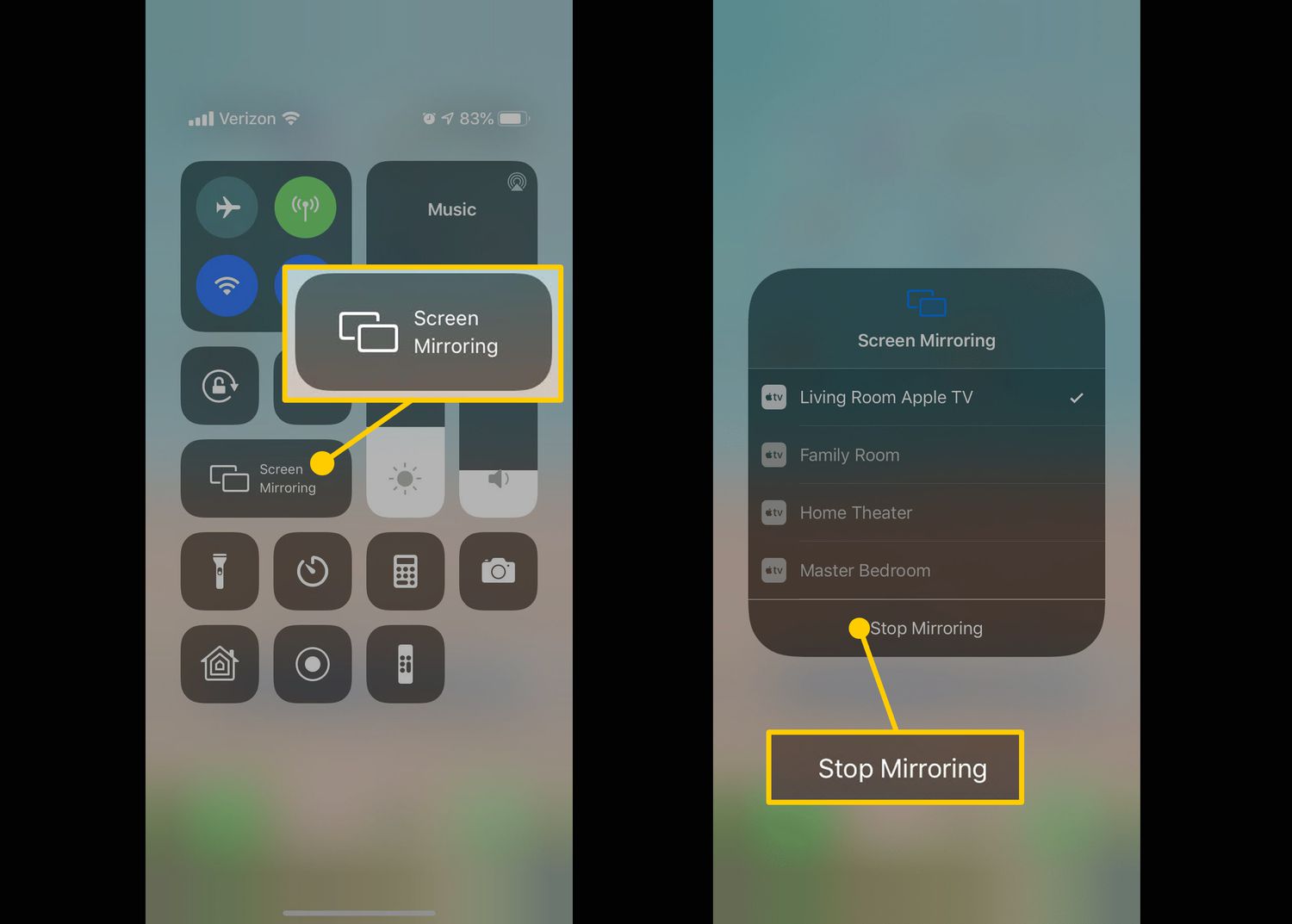
To stop sharing your screen, swipe down to go to Access Control Center and press the Screen Mirroring button. Press Stop Mirroring.
Android
See the manufacturer's documentation for more detailed information.
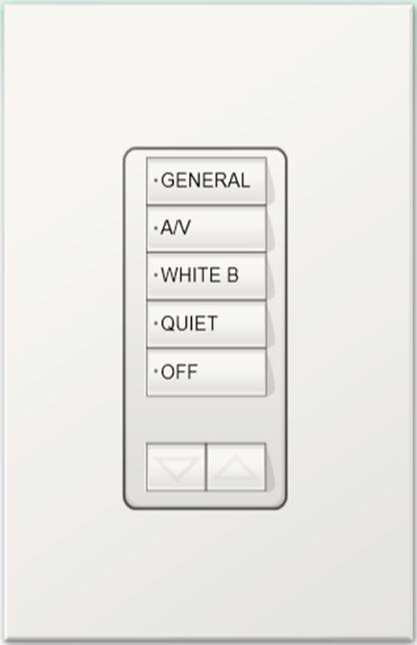
Science Complex Lighting Control
GENERAL - All lights in the room turn on and/or go to:
- General Lighting to 100%
- Teaching Wall to 50%
A/V – All lights in the room turn on and/or go to:
- General Lighting to 25%
- Teaching Wall to Off
WHITE Board - All lights in the room turn on and/or go to:
- General Lighting to 75%
- Teaching Wall to 100%
QUIET - All lights in the room turn on and/or go to 50%
OFF - Will turn off all lighting in the room
Raise/Lower (Up/Down Arrows at Bottom)
- This will cause all lights in the room to brighten or dim as one